You can connect your own domain to Veshort so your links look fully branded — like yourbrand.com or yourbrand2.com.
✅ Before You Begin
- Make sure you have access to your domain’s DNS settings. These are usually managed at your domain registrar (e.g., Namecheap, GoDaddy, Cloudflare, Porkbun, Google Domains).
- Remove any existing A or AAAA records for the domain you’re connecting to prevent conflicts with your new CNAME record.
- Allow time for propagation. DNS updates can take 15 minutes to 36 hours to fully apply.
- Using a root domain? We strongly recommend managing your DNS with Cloudflare, which automatically handles SSL, improves performance, and enhances reliability.
☁️ Why We Strongly Recommend Cloudflare
You can connect your domain using any DNS provider, but Cloudflare gives the smoothest and fastest setup, especially for root domains.
Using Cloudflare DNS provides:
- Instant & automatic SSL (no waiting).
- CNAME flattening that allows root domains (yourbrand.com) to work without A records.
- Faster global CDN performance and better caching.
- Improved security & stability via Cloudflare’s edge network.
- Fewer DNS problems compared to many registrars.
- No manual SSL management required on Veshort.
Most Veshort users who add branded domains use Cloudflare because it reduces setup time and avoids common DNS problems.
If you’re new to Cloudflare, here are helpful guides:
- How to Create a Cloudflare Account
- How to Add Your Domain to Cloudflare
- How to Change Your Nameservers to Cloudflare
How to Connect a Root Domain (e.g. yourbrand.com)
To connect your root domain, we recommend using Cloudflare.
Using Cloudflare (Recommended)
- Log in to your Cloudflare dashboard.
- Select your domain (e.g.,
yourbrand.com). - Go to the DNS tab.
Add a new record:
Type: CNAME
Name: @
Target: cname.veshort.com
TTL: Auto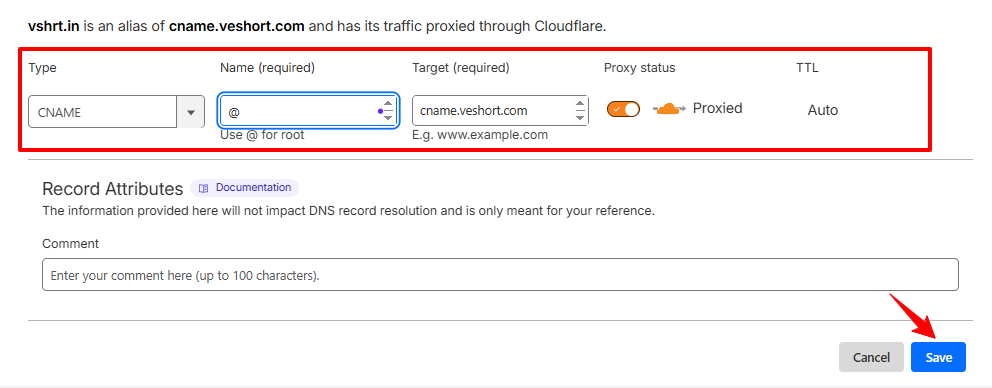
- Click Save.
Next, in Cloudflare, go to SSL/TLS → Overview, and set the SSL/TLS encryption mode to Full (recommended).
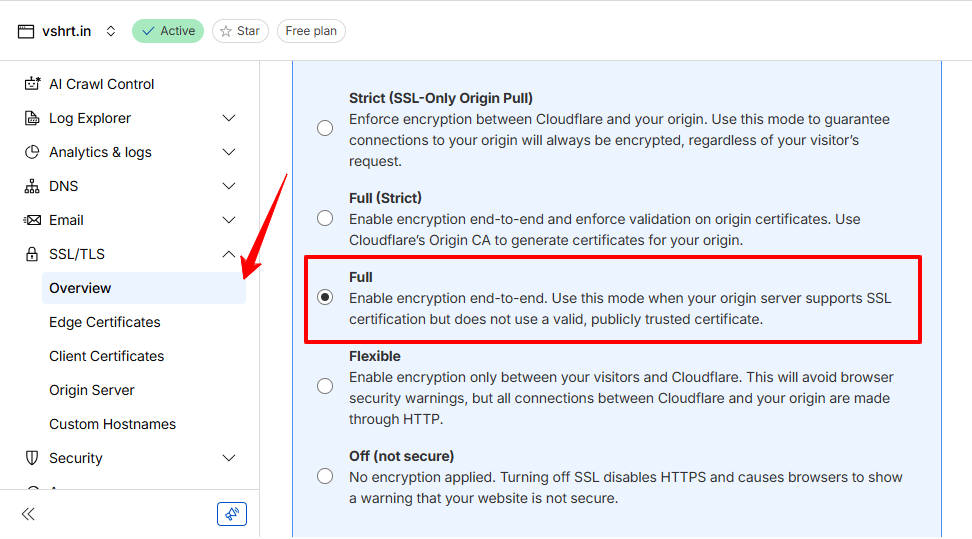
This ensures Cloudflare connects securely to your Veshort server and prevents SSL or “Not Secure” errors.
Add the Domain in Veshort
- Go to your Veshort Dashboard → Branded Domains → Add New Domain.
In the form that appears, fill in the following details:
- Domain (required): Enter the domain you configured in your DNS with https (for example,
https://yourbrand.com). - Bio Page (optional): Choose this option if you want your bio page to appear on the root of your domain.
- Domain Root (optional): Set a redirect destination if someone visits your domain or subdomain without a specific short link.
- Domain 404 (optional): Add the URL for your custom 404 (Not Found) page. This page will appear if a short link no longer exists.
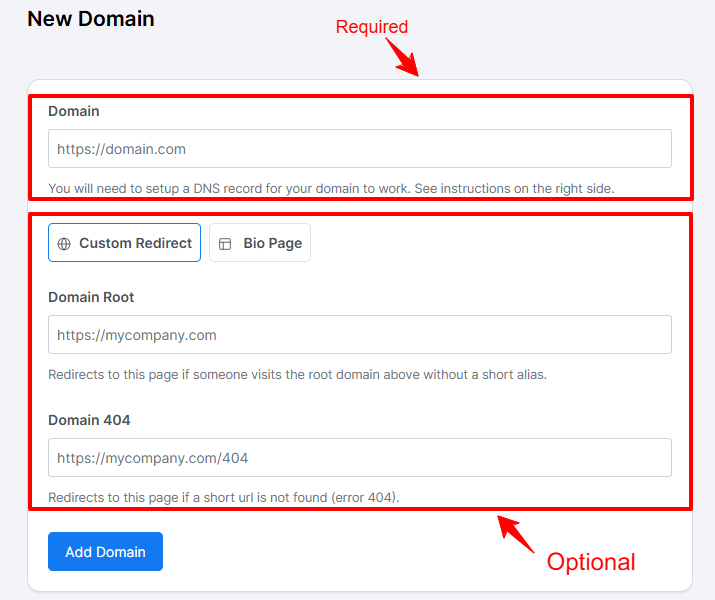
- Domain (required): Enter the domain you configured in your DNS with https (for example,
- Click Add Domain.
- Wait for DNS propagation (usually within 15–30 minutes). Once complete, your domain will automatically connect to Veshort.
✅ That’s it! Your domain is now connected and ready to use with Veshort.
If You’re Using Other DNS Providers for Root Domains
If you’re using a DNS provider other than Cloudflare, you can still connect your root domain using one of the options below. The correct option depends on whether your provider supports ALIAS / ANAME records or CNAME flattening.
Option 1 — Use an ALIAS / ANAME Record (if supported)
Type: ALIAS (or ANAME)
Name: @
Target: cname.veshort.com
This works like a CNAME at the root level and is supported by these providers:
- AWS Route 53
- DNSimple
- Gandi
- Porkbun
- Name.com
You can ask your DNS provider if they support Alias / AName / Cname Flattening
Option 2 — Use a Subdomain
If your DNS provider does not support CNAME flattening, ALIAS, or ANAME records, you’ll need to use a subdomain instead.
Use a subdomain such as links.yourbrand.com — this method works with all providers. Follow this “How to Connect a Subdomain” to complete the setup.
📣 Next Steps
- Once DNS and SSL are verified, you can start creating branded short links under your domain.
- All your links will be served securely via HTTPS.
- Manage and track link analytics directly in your Veshort dashboard.